

Use this preflight checklist before generating or syncing slides.
Confirm access to the current Google Doc™
In the access prompt, choose visibility (Workspace or Just me). Click Grant access.
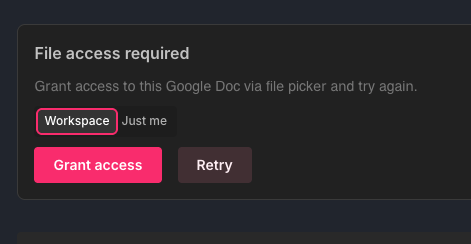
Complete the Google file picker flow.
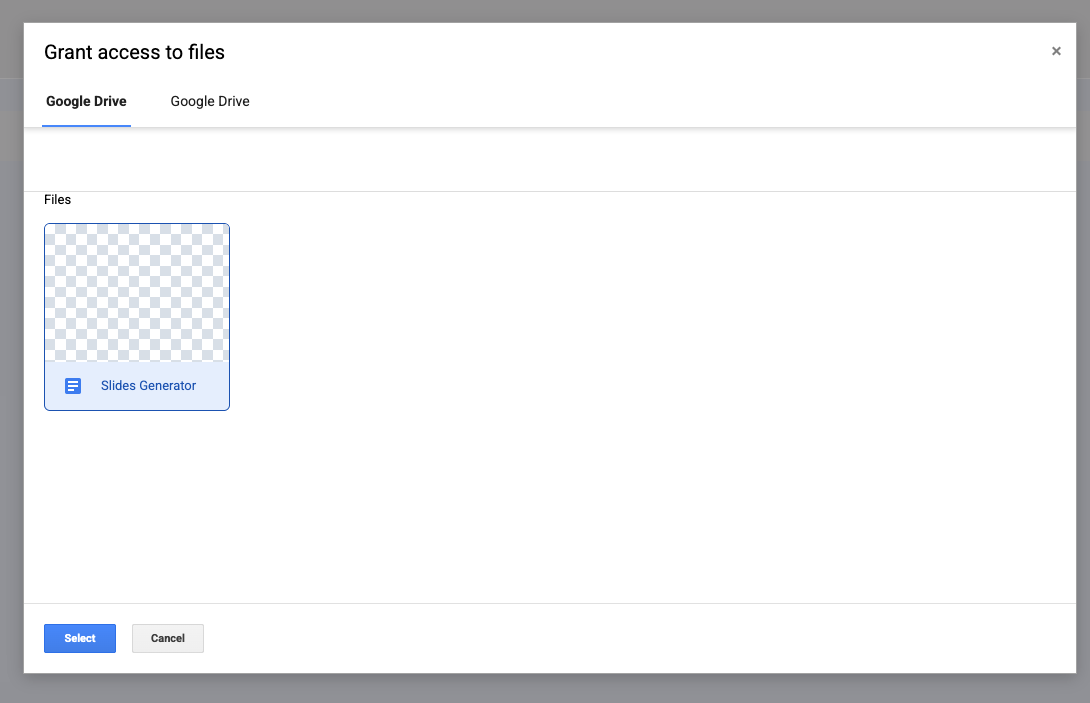
Confirm collaborators also have Doc access (for sync workflows)
If teammates need to sync this document to Google Slides, make sure they have access to the Google Doc™ and Google Slides™ itself.
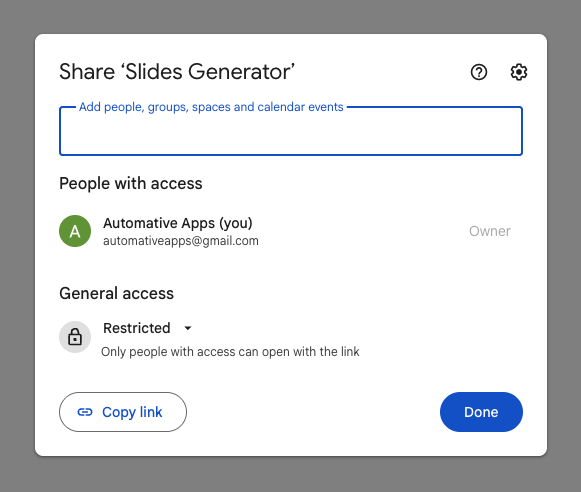
Confirm access to custom theme file (if using custom themes)
If you import a custom theme, ensure you have access to that Google Slides™ theme file.
Check third-party cookies and pop-up behavior
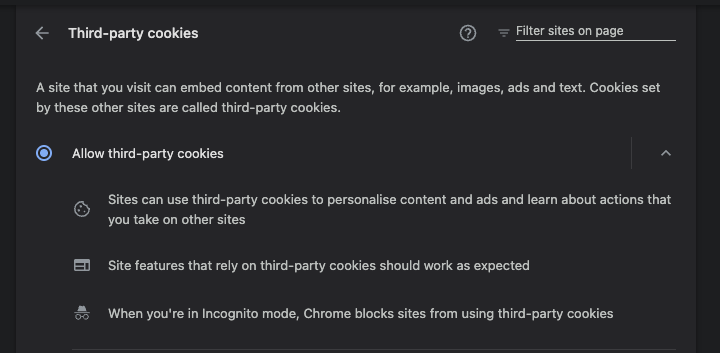
If grant flow is blocked, allow third-party cookies.
In Chrome browser, click the three dots on the right, then Settings > Privacy and Security > Third-party cookies.
Click Allow third-party cookies.
Refresh previews after content or style changes
After editing doc content or appearance settings, click Refresh before generating or syncing.
Check sync indicators before using Sync All
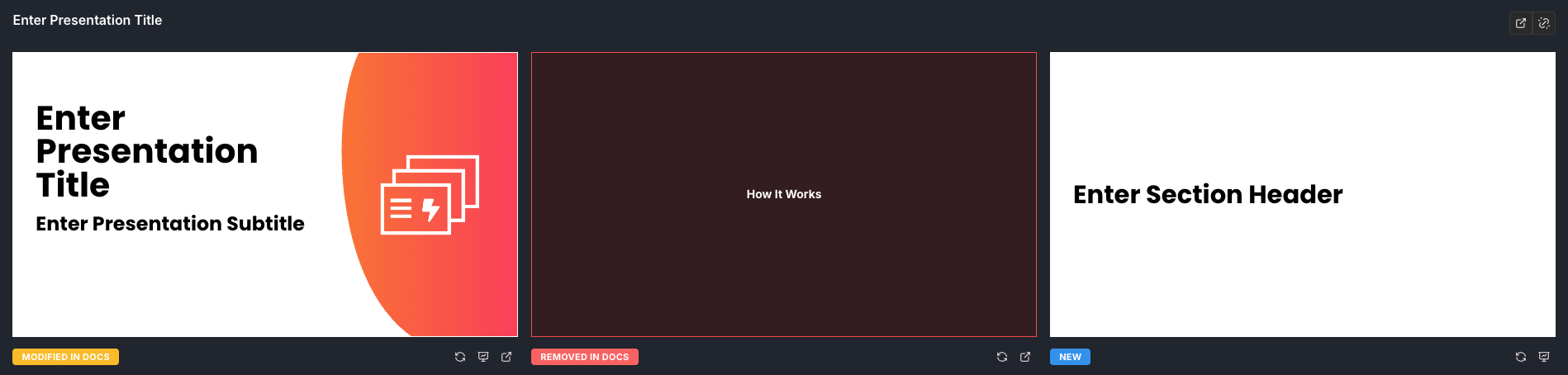
Review the slide previews and source statuses (New, Modified in Docs, Removed in Docs, Synced) before using Sync All. Sync All rebuilds the presentation from those previews, overwriting direct Google Slides™ edits and removing slides outside the previews.
You can contact support from the in-product Help area or via Contact.