

SlideAdmin selects layouts from your document’s content structure. Choose a structure that matches the message, then use contextual settings to refine the appearance.
Match the content to a layout
| Content | Document structure | Best use |
|---|---|---|
| Presentation title | Title, optional Subtitle and image | Introduce a deck |
| Section header | Heading 1 with little or no body content | Introduce a new section |
| Title and body | Heading 1 followed by normal text | Explain one topic |
| List or subsection cards | Heading 1 followed by bullets or Heading 2 sections | Compare points or group ideas |
| Image cards | Heading 1, then repeated image, optional Heading 2, and body text blocks | Show products, people, or examples |
| Main point | Normal text isolated as a content block | Highlight a takeaway |
| Image with caption | Image followed by a short text paragraph | Explain a visual |
| Full image | Image isolated by blank paragraphs | Give a visual the whole slide |
| Video | YouTube link, optionally beneath a heading | Show a video |
| Table | Table, optionally beneath Heading 1 | Show structured data |
Refine the automatic layout
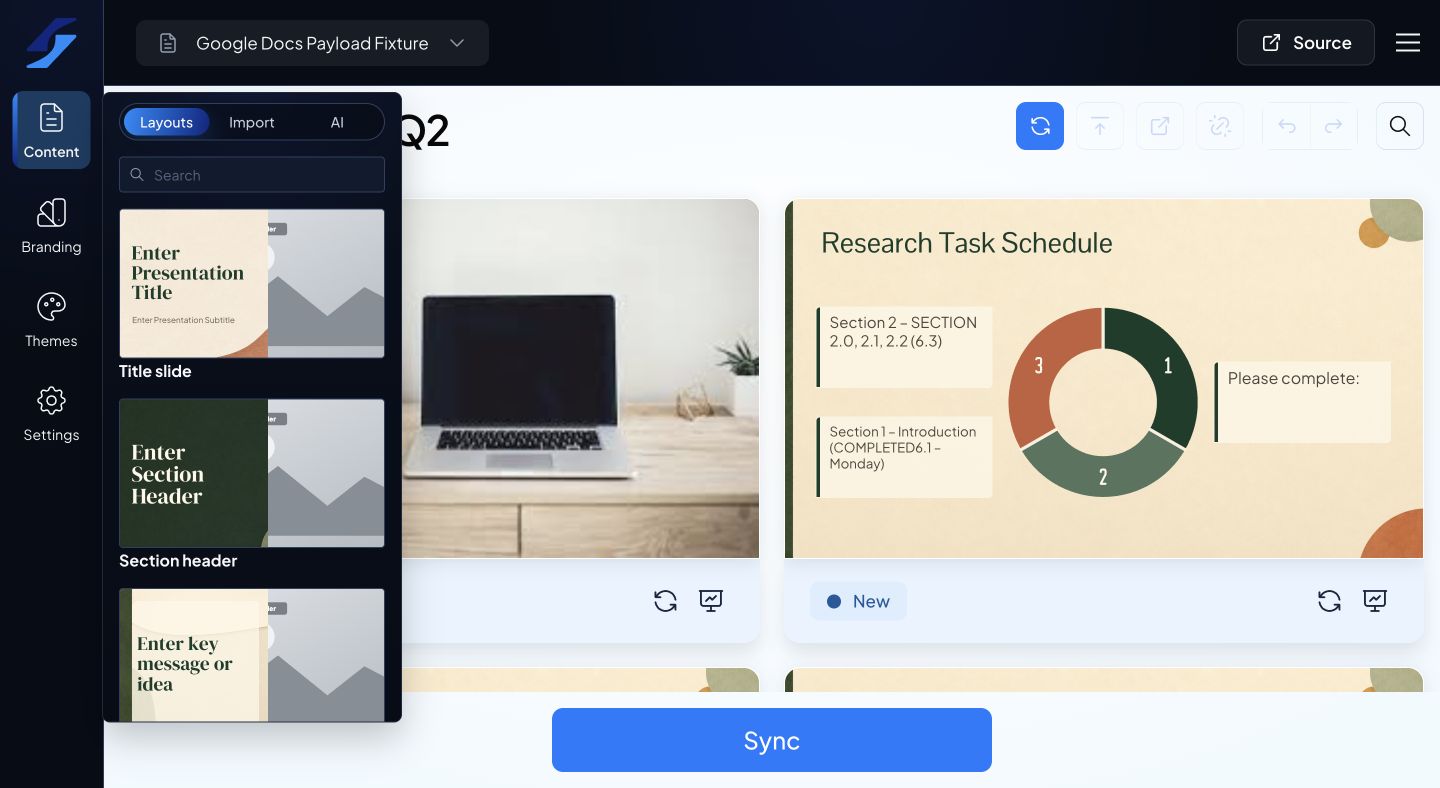
Use Content → Layouts to insert a working example. In the preview, select a layout or card control to adjust the options available for that slide, such as grid, vertical, timeline, or ring arrangements. Not every arrangement is available for every content type.
Select an image to adjust its relationship to the text. Adjust card counts and spacing when content is too dense. Review every affected slide after changing these settings.
Keep the source readable
Short headings, concise body text, and a clear content order make layout selection more predictable. Split a dense slide into smaller blocks rather than relying on very small text.
For document rules, see Structure a Google Doc for slides.