

If the preview contains missing, merged, or unexpected slides, first check the source document structure. Refresh after each correction so you can see which change solved the problem.
Check slide boundaries
- Open the source Google Doc.
- Check that slide headings use actual Heading 1 styles.
- Check that presentation openings use Title, and ordinary slide headings do not.
- Look for unintended blank paragraphs inside a content block.
- Add a blank paragraph where separate blocks have merged.
- Refresh SlideAdmin and compare the result.
Changing font size or making text bold does not apply a paragraph style.
Check filters and notes
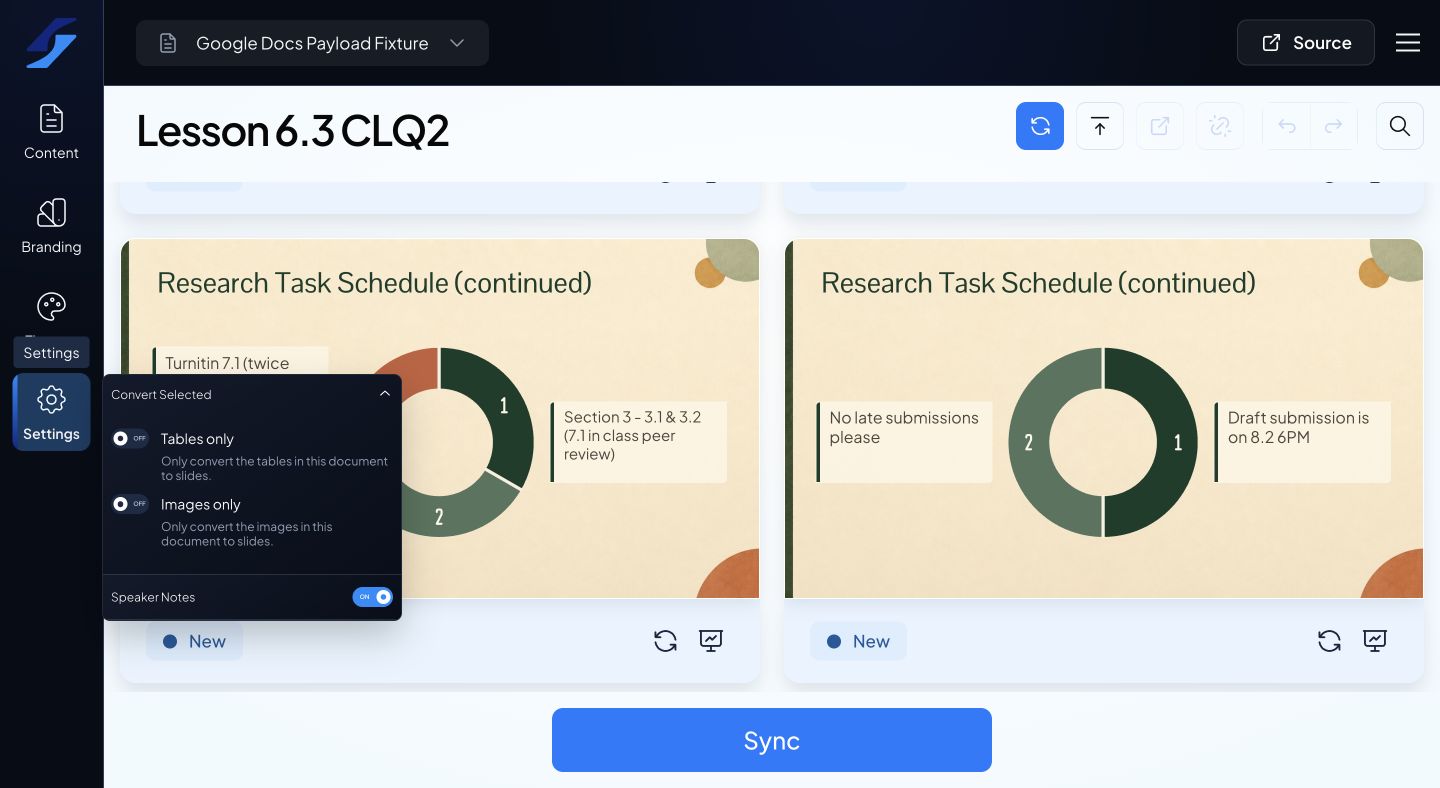
Open Settings and inspect Tables only and Images only. Turn off filters you do not intend to use, then refresh.
If visible content has become notes, look for paired horizontal lines around it and check the Speaker notes setting. If a new presentation unexpectedly begins, look for an extra Title paragraph.
Use a known structure
Insert a suitable example through Content → Layouts and compare its structure with the troublesome block. Check image order, Heading 2 subsections, and where tables or YouTube links sit relative to headings.
For imported content, inspect the destination Doc rather than assuming the original Slides layout transferred exactly.
Once the previews are correct, review syncing separately. A correct preview does not mean a managed Google Slides deck has already been updated.