Why you might want to add speaker notes
Speaker notes provide a space to jot down key points, reminders, or details to cover in your presentation, so your slides are not overloaded with content.
You may want to elaborate on concepts that are too detailed to include on the slide itself. Or provide anecdotes, examples or activities.
SlideAdmin provides a simple way to add speaker notes.
How to add speaker notes to slides
Wrap the content you want to add to speaker notes between horizontal lines.
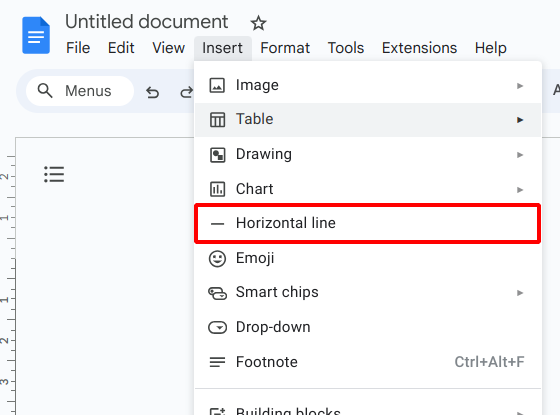
To add a horizontal line in Google Docs™, click Insert > Horizontal Line.
Note that SlideAdmin will also treat three or more underscores (___) or stars (***) as horizontal lines.
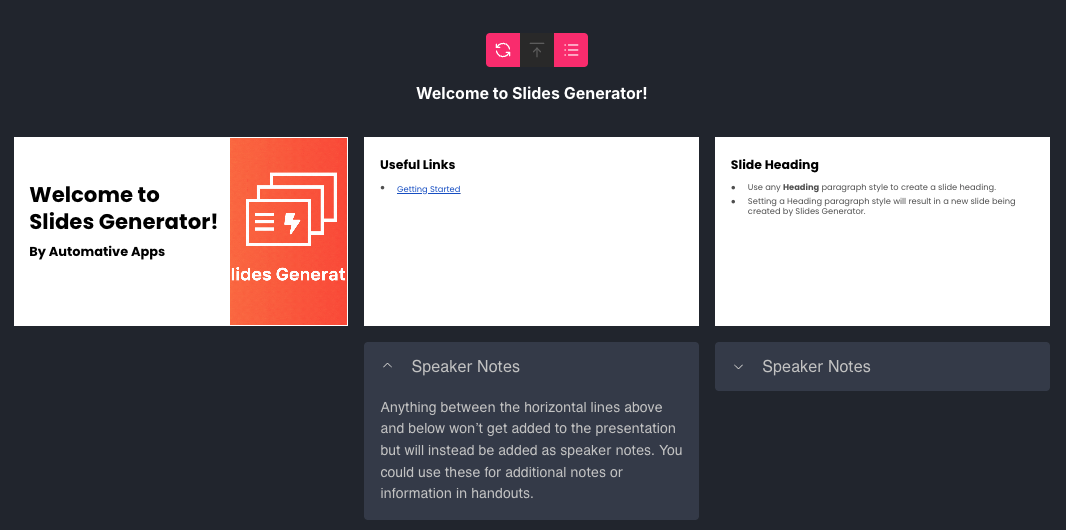
Any content between the horizontal lines will be added as speaker notes to the slide immediately before.

To check that your slides will generate properly, click the Refresh button to refresh the slide previews.

You'll see the speaker notes under the relevant slides.