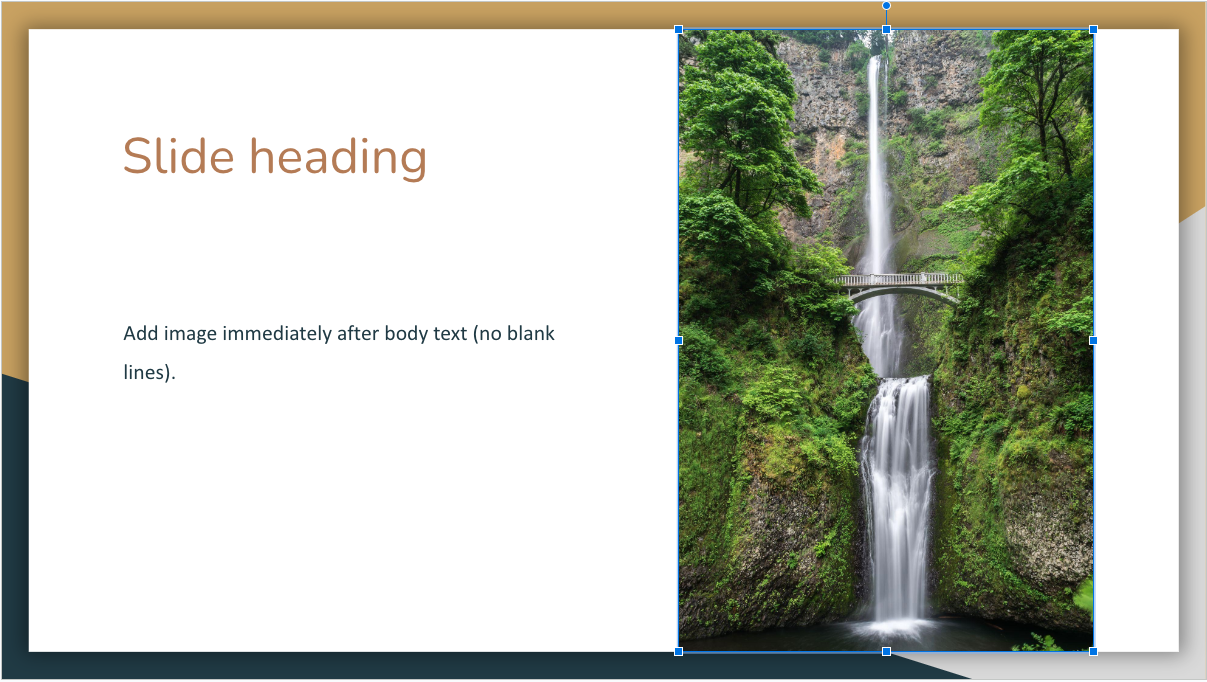
SlideAdmin allows you to specify whether or not your images are cropped to size to fit a given text box.
For example, if you're displaying a figure or equation, it's likely that you'll want to disable cropping to preserve the original image aspect ratio.
How to Enable Image Cropping
To enable image cropping, turn on Fill height and width of box under Appearance → Images
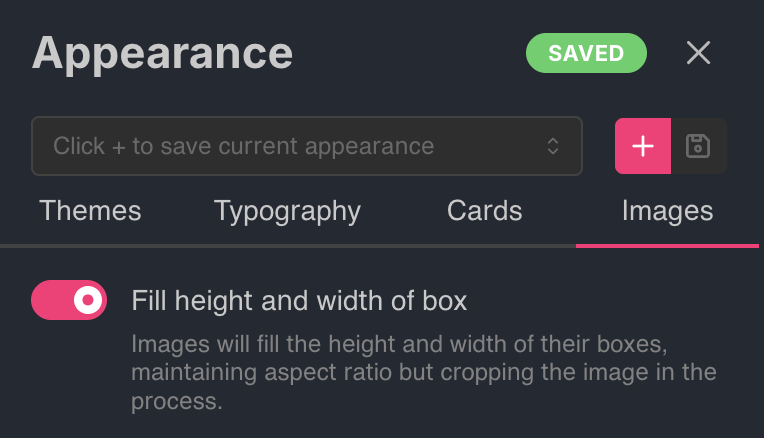
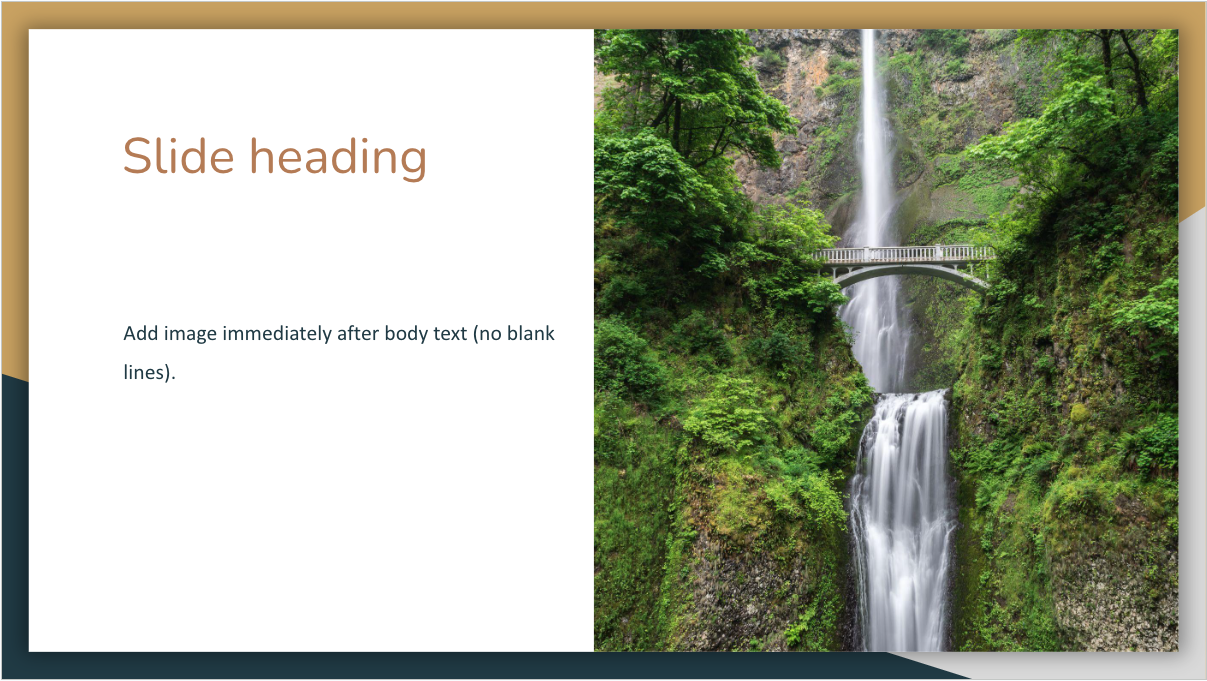
When enabled, images will be cropped to fill the entire area of a given placeholder textbox in the slide layout. The result would look something like:
Disable this setting if you'd like to fit the image into the placeholder textbox while preserving the original image aspect ratio. The result would look something like: