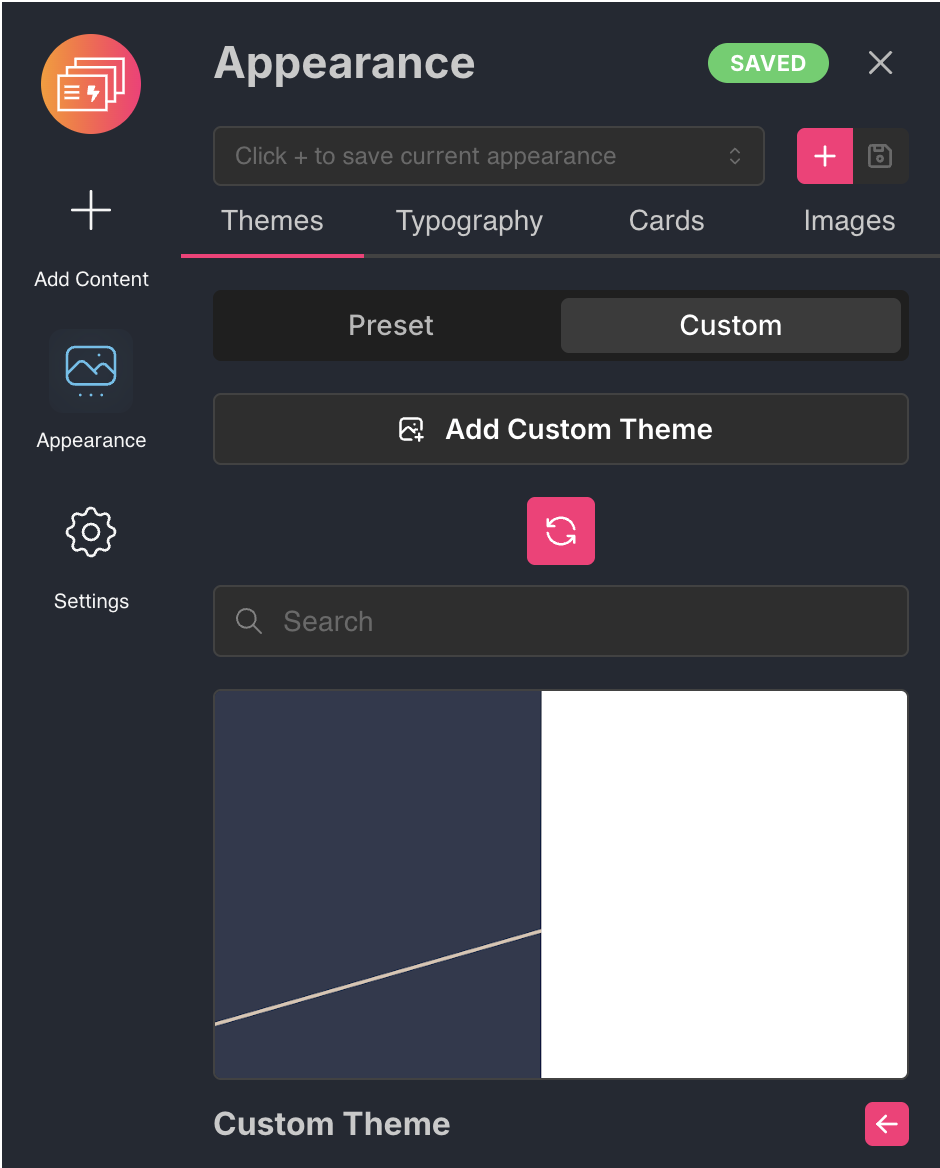
We're going to show you how to setup your own custom theme so you can generate slides into your own Google Slides theme. In doing so, you can keep your team's presentations aligned with your branding.
Open a new Google Slides™ presentation
Open a new Google Slides™ presentation. You can do this by typing slide.new in the URL search bar and press Enter (or return).
Your new presentation will have a Title slide pre-populated. Please do not delete this slide. We need at least one slide in the theme file to set the theme when generating your slides.
Then click Slide > Edit Theme.
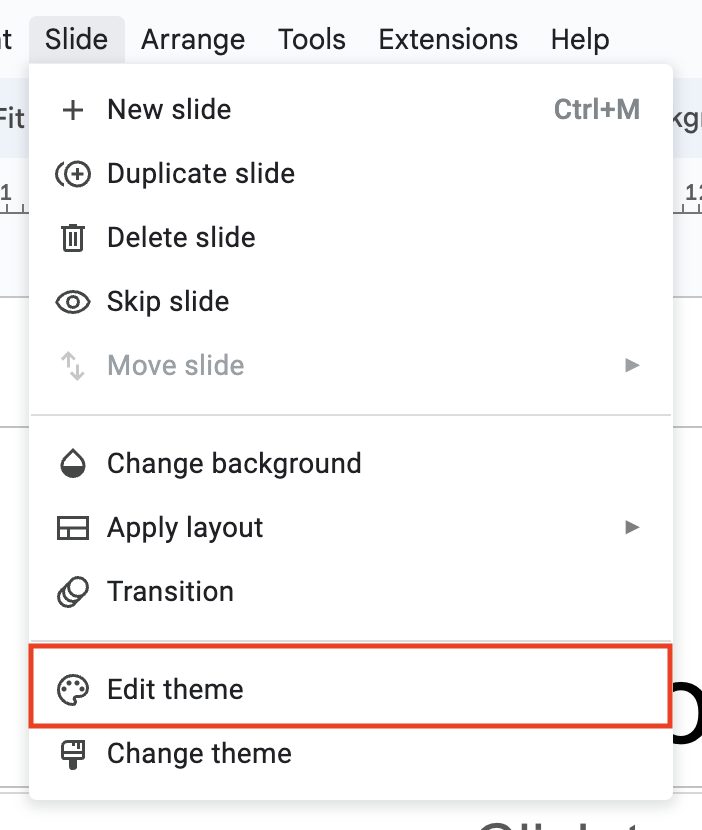
Layouts that SlideAdmin uses
Slide Generator uses the following predefined Google Slides™ layouts when generating slides into a theme. These layouts will need to be present in your theme.
- Title slide
- Section header
- Title and body
- Title only
- One-column text
- Main point
- Caption
- Blank
Customize the master THEME layout
Click the master THEME layout.
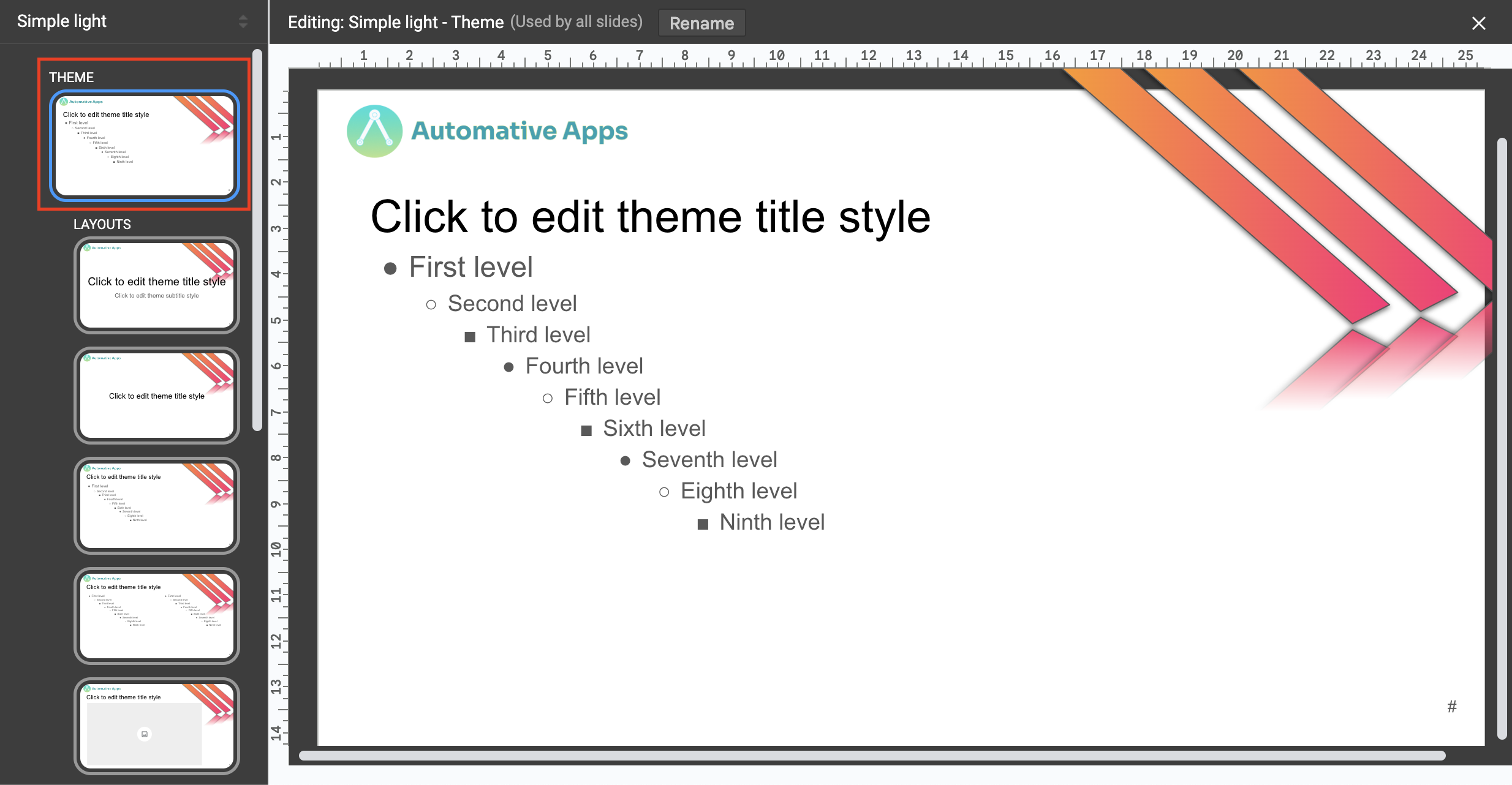
Changes you make to this layout apply to all layouts. You can add your logo or other elements that you want appearing in all slides.
Add Image placeholders
There are 3 layouts where you can optionally specify the position of image placeholders. Otherwise SlideAdmin will do its best to work out image placement relative to the title and body text.
Select the Title only layout.
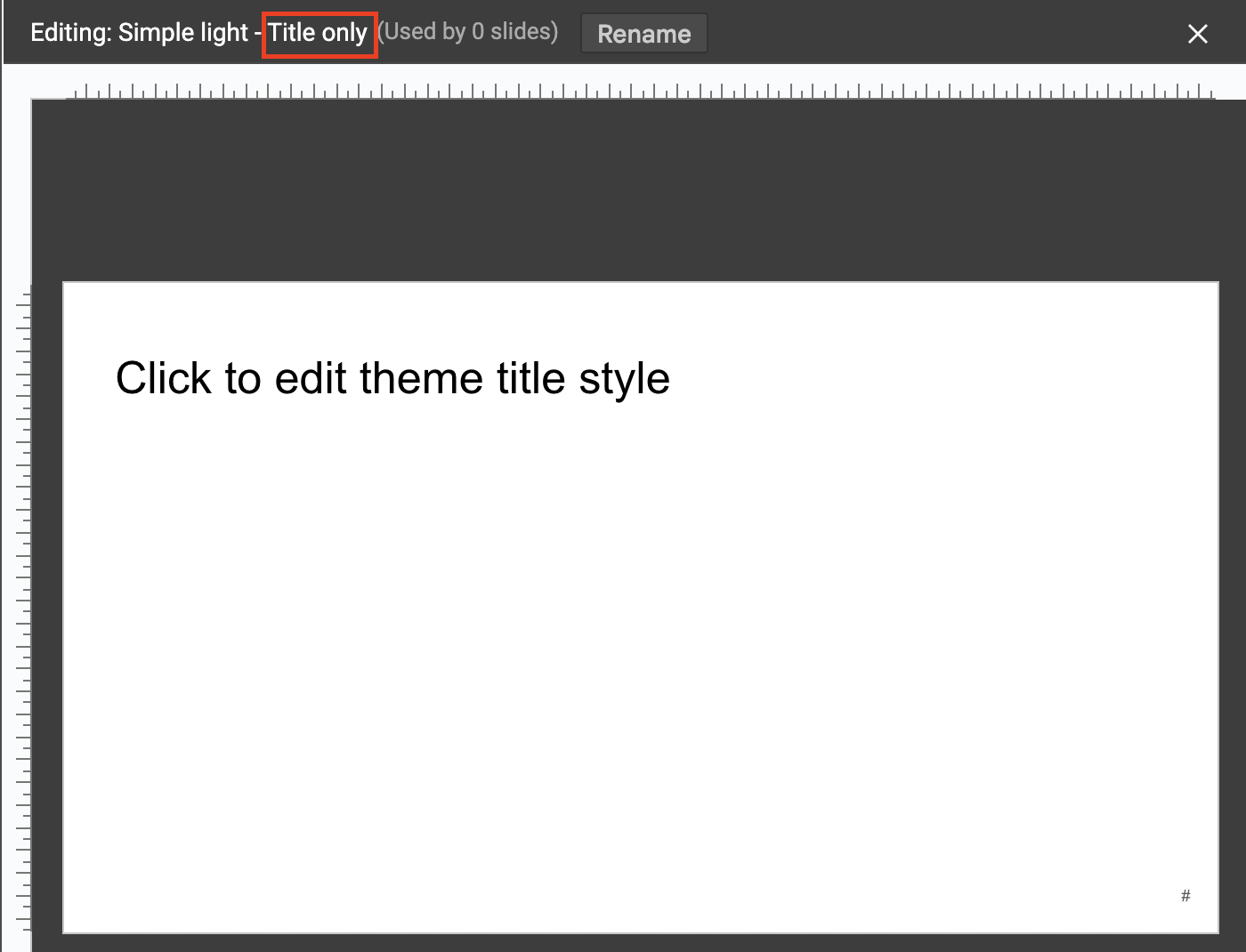
Click Insert > Placeholder > Image placeholder and select a shape. Add that in the Title only layout.
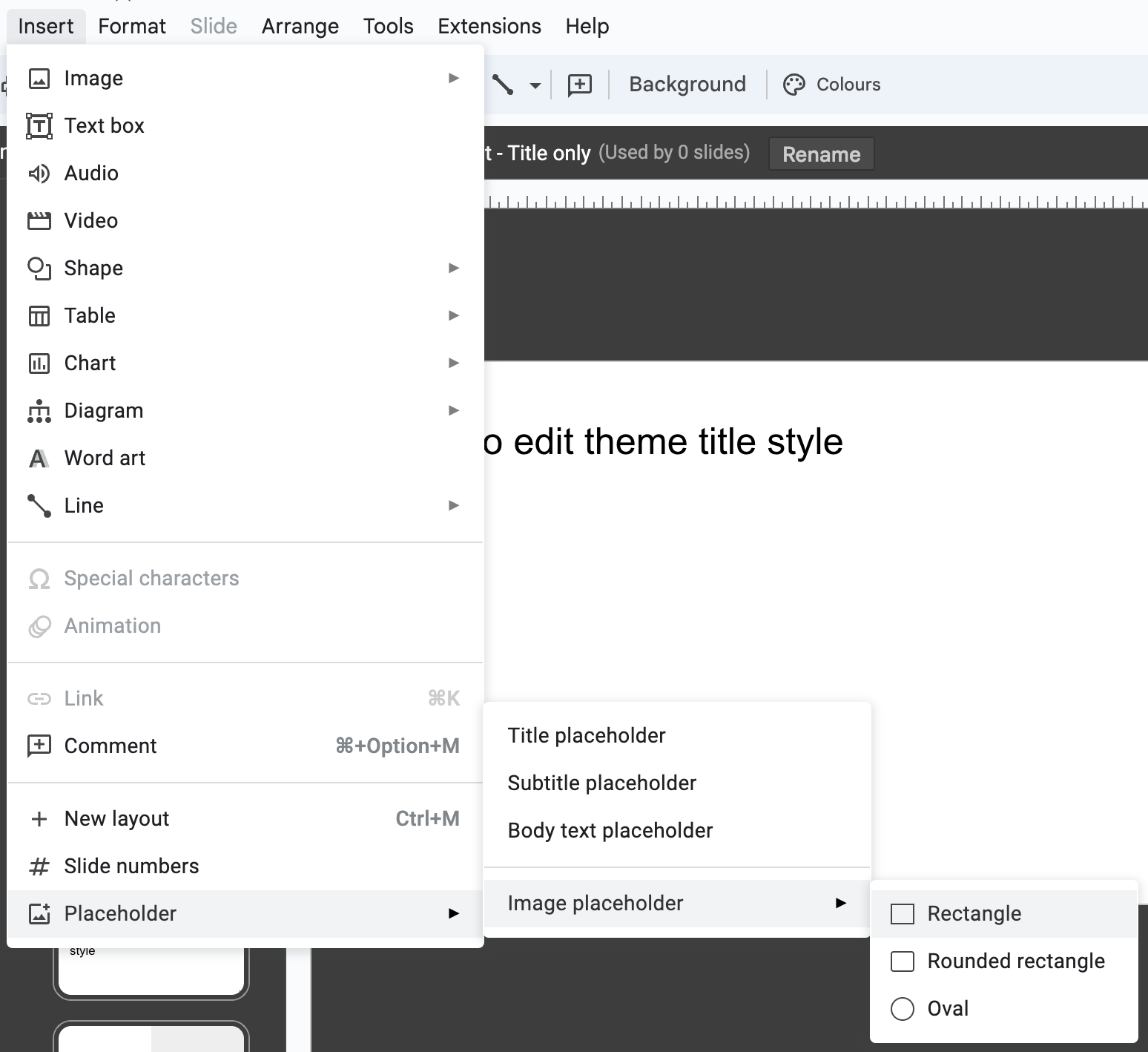
Do the same for the One-column text and Caption layouts.
Customize the other layouts
Feel free to customize the other layouts, e.g. Title Slide, Section Header, etc. to your liking.
Once you're done customizing, set the Google Slides™ file name.

It is important that you keep at least one slide in the theme file as we use that to set the theme when generating your slides.
How to use the theme file to generate slides
Copy the URL of the presentation file, which will look something like https://docs.google.com/presentation/d/15mS-xRXkQwkSdBPbPbdUAKEJJ_IkUSPUELtyukK9trg/edit
In SlideAdmin, click Appearance → Themes → Custom. Then Add Custom Theme and paste the URL into the Google Slides™ URL text field. Click Create.