

Once a linked Google Slides™ presentation has been generated the first time, you can subsequently sync updates.
Refresh previews and check sync status
Before syncing, click Refresh so statuses are up to date.

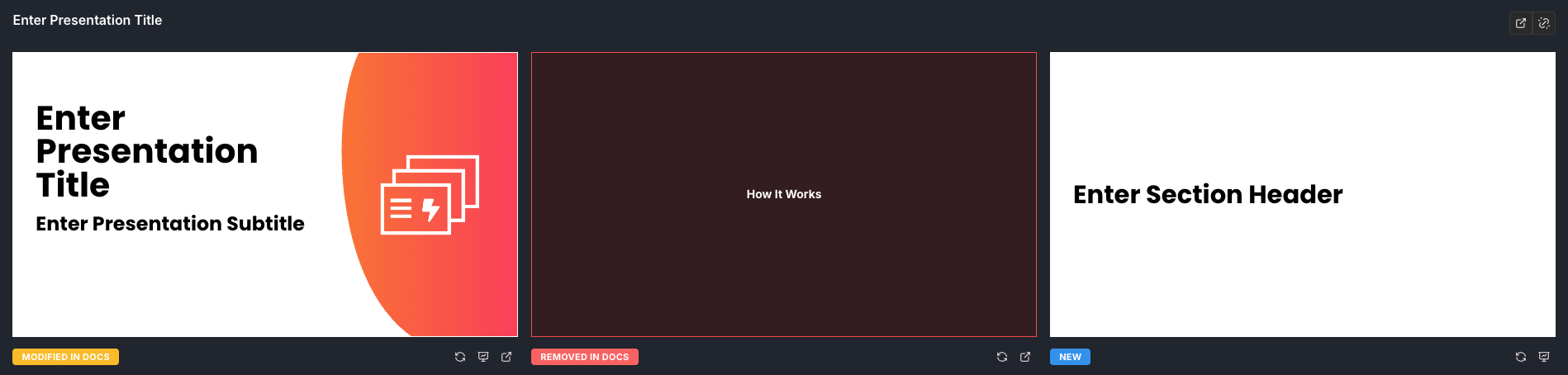
Each slide shows a sync status such as:
- NEW
- MODIFIED IN DOCS
- REMOVED IN DOCS
- SYNCED
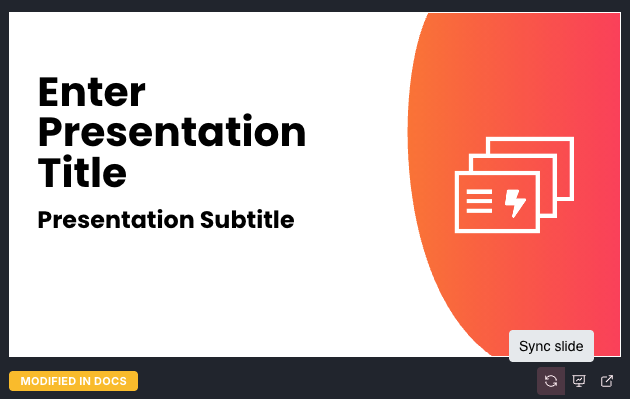
Sync a single slide
Use Sync slide on a specific slide when you only want to update one item.
This is best when:
- You changed one section in Docs
- You want to review each change before syncing everything
Sync all slides
Use Sync All to rebuild each linked presentation from its current slide previews, even when no Docs changes are pending. Every preview is rendered in preview order. Missing slides are recreated, and slides that are not in the previews are removed, including slides added directly in Google Slides™.

Overwrite behaviour
Google Docs™ is the source of truth for synced content.
Sync is one-way: syncing overwrites Google Slides™ content and formatting from the slide previews. Sync All rebuilds every slide, including slides marked Synced. Sync slide rebuilds only the selected slide.
Statuses describe changes to the source since the last sync; edits made directly in Google Slides™ do not change those statuses.
Slide removal behaviour
Removed in Docs means the source content was removed from Google Docs™. Syncing removes the corresponding slide from Google Slides™.
If a linked slide was deleted directly in Google Slides™, syncing recreates it from the preview. There is no separate Removed in Slides status.