

Appearance presets let you save and reuse style settings such as typography, theme selection, and other visual options.
Open Appearance settings
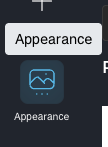
In SlideAdmin, open Appearance and adjust styles (for example theme, heading/body text styles, and layout options).
Create a new preset
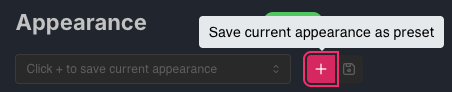
Once you're happy with your styles, click Save current appearance as preset.
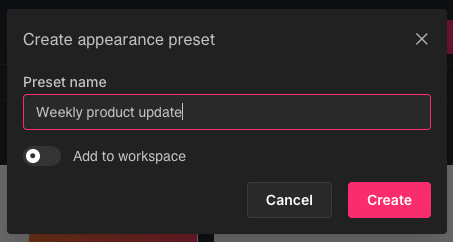
Enter a name.
Apply a preset
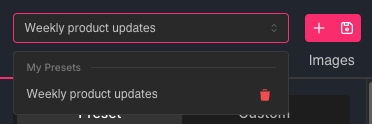
Select an existing preset to instantly apply saved appearance settings.
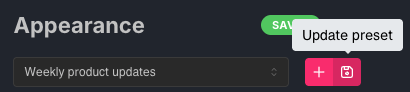
Update an existing preset
If you make improvements, update that preset so future docs use the latest style setup.
Personal presets vs workspace presets
- My Presets: personal presets available to your account.
- Workspace Presets: shared presets for your team workspace.
Only workspace admins can update workspace presets.