

Use layout shortcuts when adding content to a presentation you maintain. They insert structured content into your Google Doc so the new slide follows the expected paragraph styles and content order.
Choose a shortcut
- Open a document in SlideAdmin.
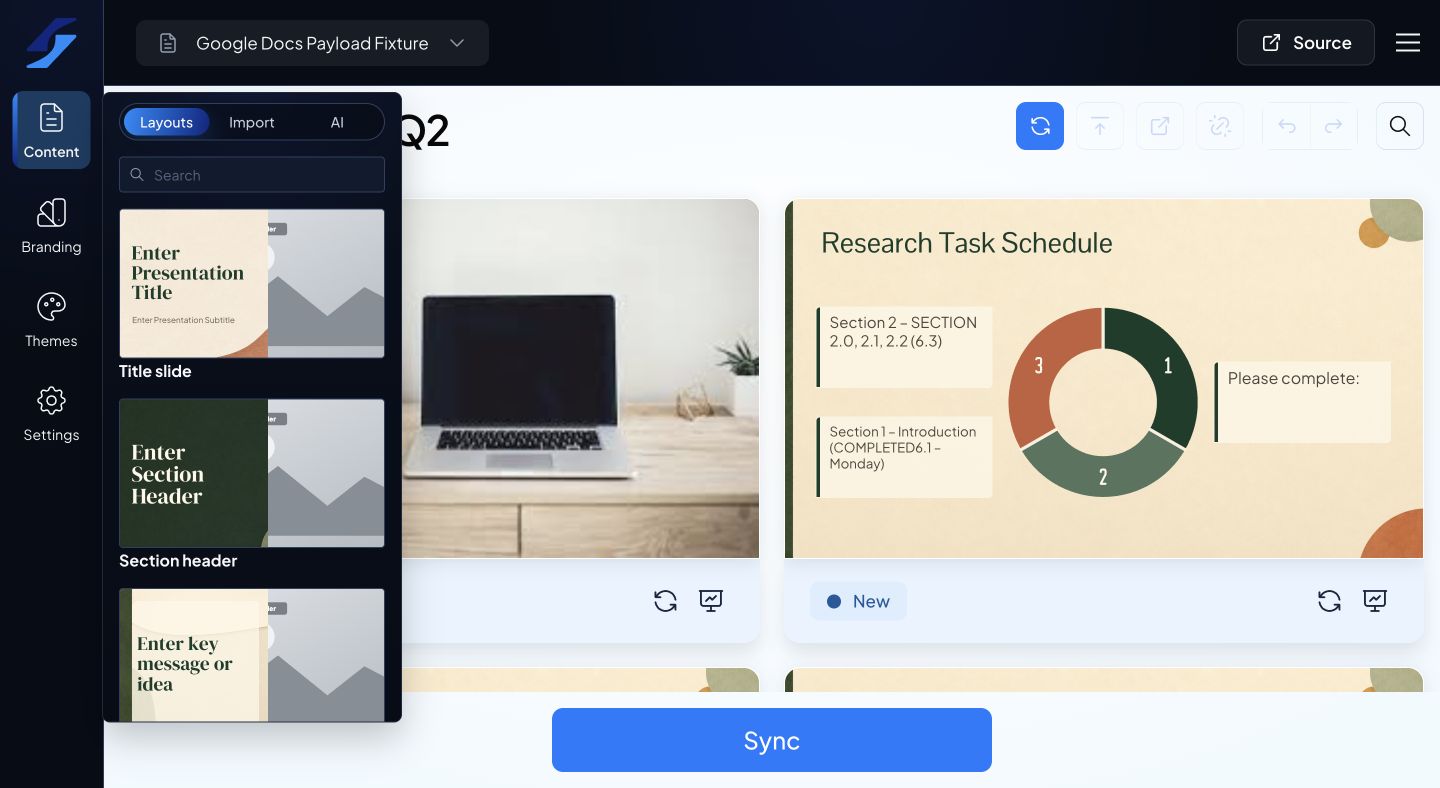
- Open Content, then choose Layouts.
- Browse the layout previews or use search to narrow the options.
- Select the layout you want to insert.
In the Google Docs add-on, position the document cursor where you want to add the content before selecting the shortcut.
Replace the sample content
Open the source Doc and replace the inserted placeholder text, images, or links. Keep the paragraph styles and ordering while changing the content. For example, replace a card heading without changing it from Heading 2 to normal text.
Use Refresh in SlideAdmin after editing. Check that the new slide has the intended layout and that neighboring slides have not merged with it.
Customize the result
A shortcut establishes the content structure. Your theme and contextual settings control how it looks. Select the resulting card, text, image, or background to adjust its appearance.
If the layout changes unexpectedly after replacing content, check for deleted headings, additional blank paragraphs, or images moved outside the original block.
See Choose layouts for different types of content for help choosing a starting structure.