

Use styling scopes to keep presentation appearance consistent while allowing deliberate exceptions. SlideAdmin combines theme defaults, document appearance settings, and contextual customizations, so one element can differ from others using the same theme.
Make a local change
Select an element or slide in the preview, check the menu title, and change its settings. For example, choose a different color for one card heading without changing every heading in the document.
Selecting a slide background targets slide-level appearance. Selecting a text block targets that text role or element. Always check the target before making a change.
Apply a change more widely
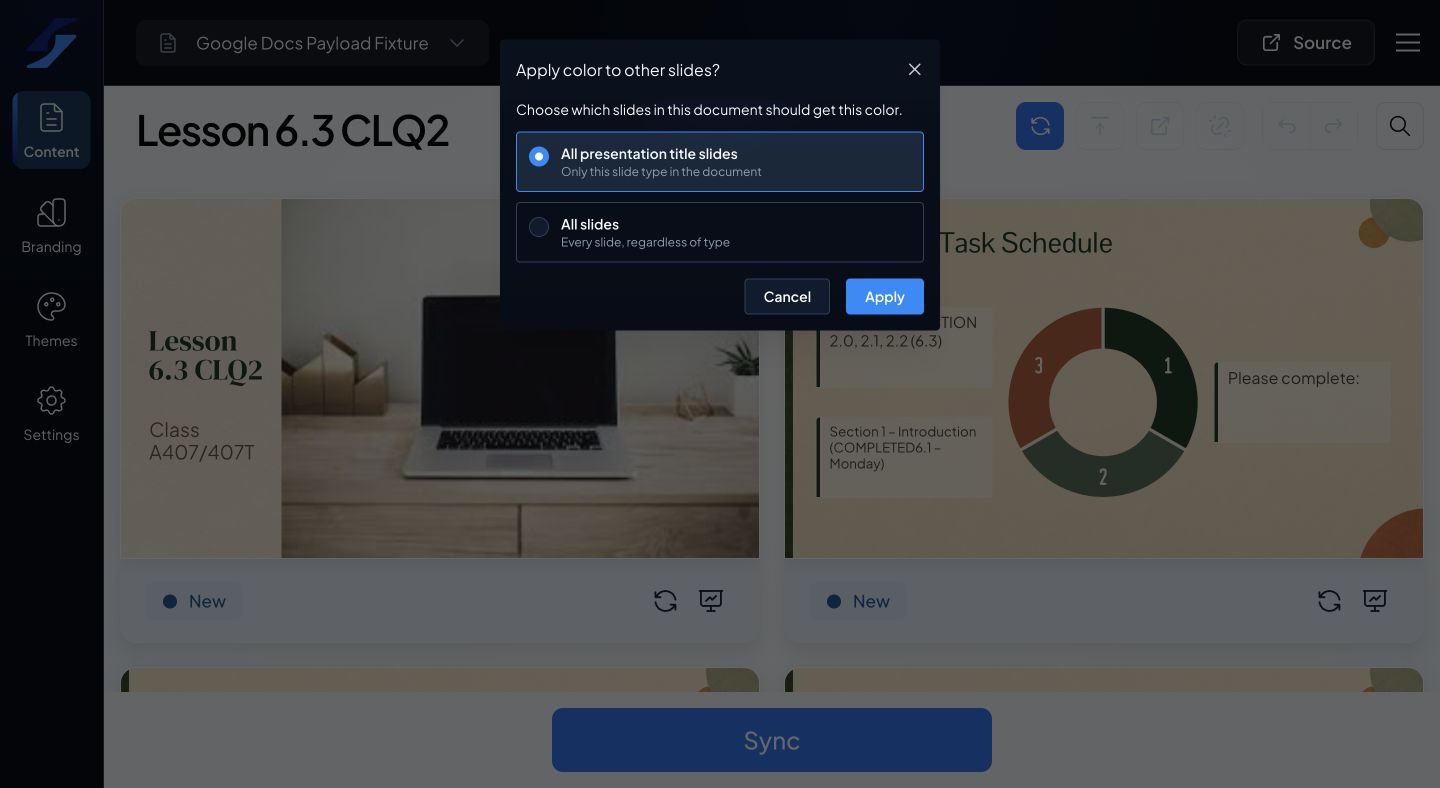
Use an apply control beside a setting to copy that setting, or Apply All to apply the menu’s group of settings. Depending on the target, the dialog can offer matching slide types, other slides, or other cards in the current slide.
- Open the apply action.
- Read which slides or cards the dialog includes.
- Select the intended scope.
- Confirm, then review several affected slides, including dense and image-heavy examples.
Do not assume that “All” means only the presentation currently visible; the confirmation explains the document scope.
Reset customizations
Use Reset All in the relevant contextual menu to return the covered settings to the selected theme defaults. Read the reset confirmation: it can affect matching slide types or settings across the document.
A reset changes appearance settings. It does not restore deleted source content or reverse a previous Google Slides sync. If an element still differs afterward, inspect other contextual settings affecting it.
When ready, update the managed presentation.