

A theme provides the design baseline for a presentation you maintain. Select it before making many local customizations, then review representative slides so future content updates have a suitable starting appearance.
Find a theme
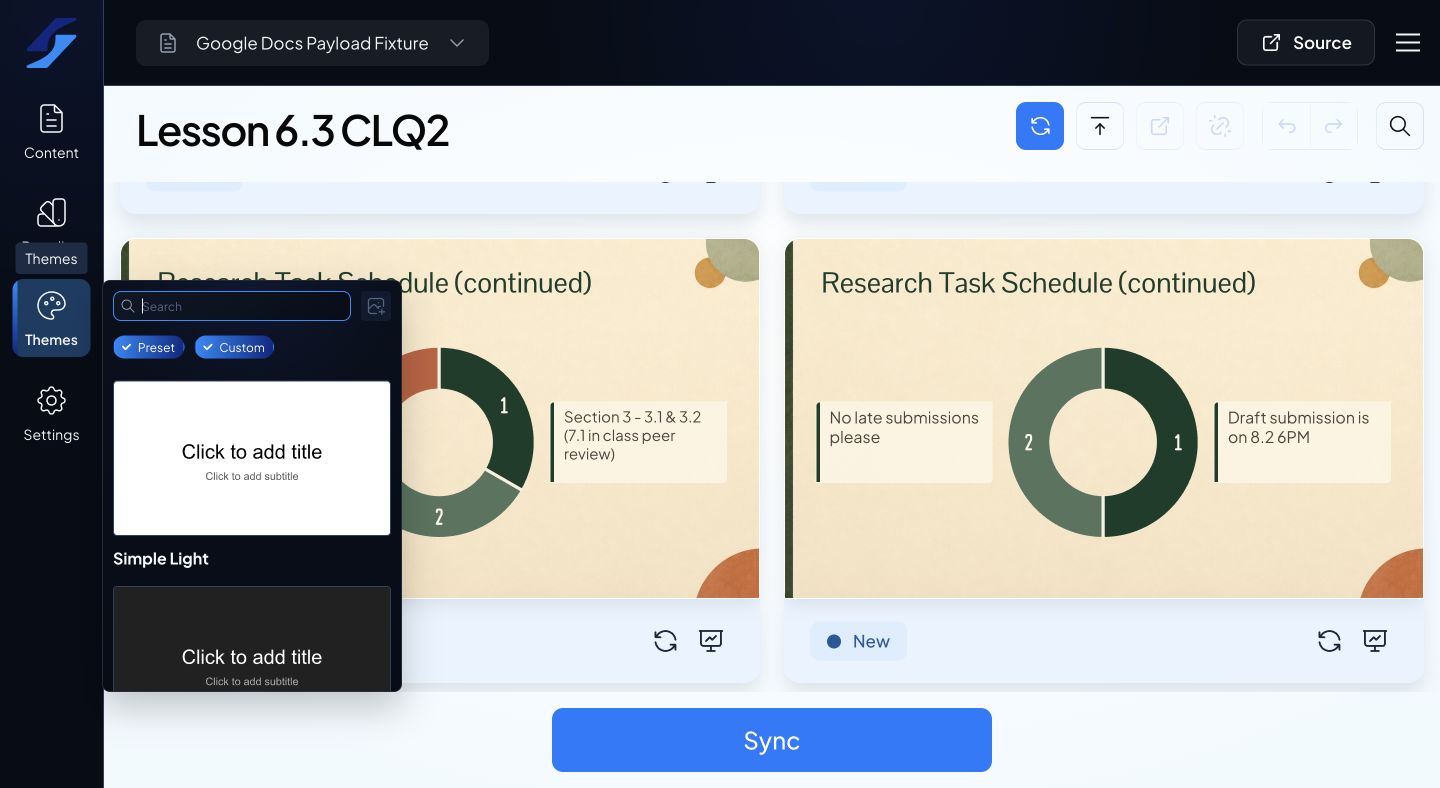
- Open Themes in the editor.
- Use search to find a theme by name.
- Use the Preset and Custom filters to focus the list.
- Select a theme and allow the previews to update.
Custom-theme access depends on your plan. If custom themes are disabled, check Account for your current access.
Review representative slides
Check a title slide, body slide, card slide, and image or table slide. Look at font sizes, contrast, image framing, backgrounds, and logos. A theme that looks good on the opening slide may still need adjustments for dense content.
Understand local styling
Contextual customizations can make individual elements differ from the theme. If a slide does not match the new theme as expected, inspect its contextual settings rather than repeatedly selecting the theme.
Use the relevant reset action to return covered settings to the selected theme defaults. Read the confirmation before resetting across the document.
Applying a theme does not change your document’s wording. It also does not automatically update an existing managed Google Slides deck; sync after reviewing the previews.
To make a reusable design, see Create a custom theme with the theme builder.