

Contextual menus let you maintain a slide’s appearance in its preview. Select the part you want to change, review the result, and sync when you are ready to apply it to managed Google Slides output.
Open the right menu
- Open your document in the editor and find the slide you want to change.
- Select the text, card, image, marker, or table you want to customize.
- To change the slide itself, select its background or layout control.
- Check the menu title before editing. It identifies the target, such as Card body, Slide heading, Layout, or Slide.
Menus may appear beside the selection or in a drawer, depending on the available space. You do not need to right-click to open the standard controls.
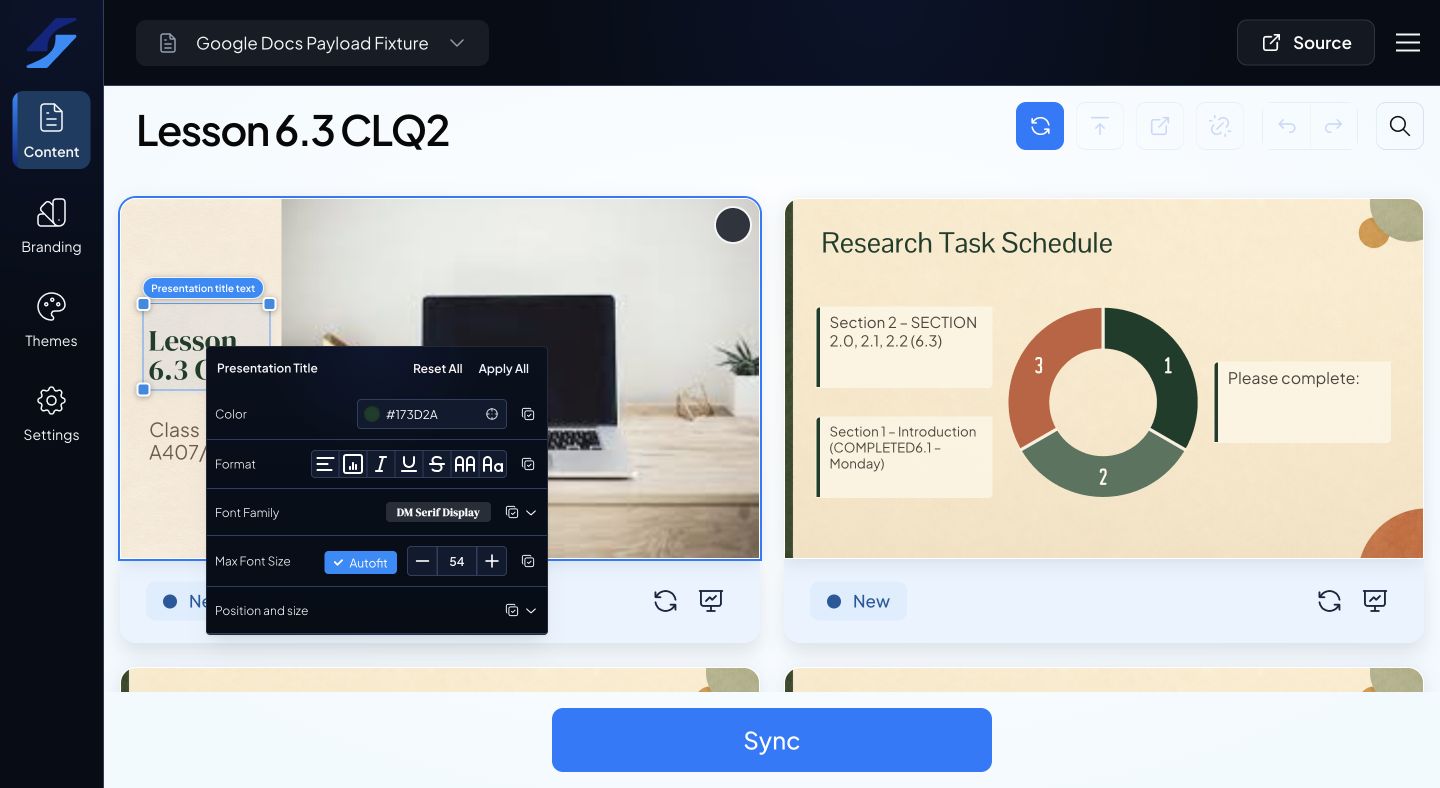
Adjust and review
Change one setting at a time and check the preview. Different elements offer different controls: text has font and spacing options, images have placement and cropping, and cards have layout, fill, border, and marker settings.
Select another item to move to its controls, or click away to dismiss the menu. If a control is unavailable, confirm you selected the intended element and that its layout supports that option.
Choose how widely to apply changes
Local changes affect the selected target. Apply All and the apply controls beside individual settings can copy changes to a wider scope. Read the confirmation dialog before proceeding.
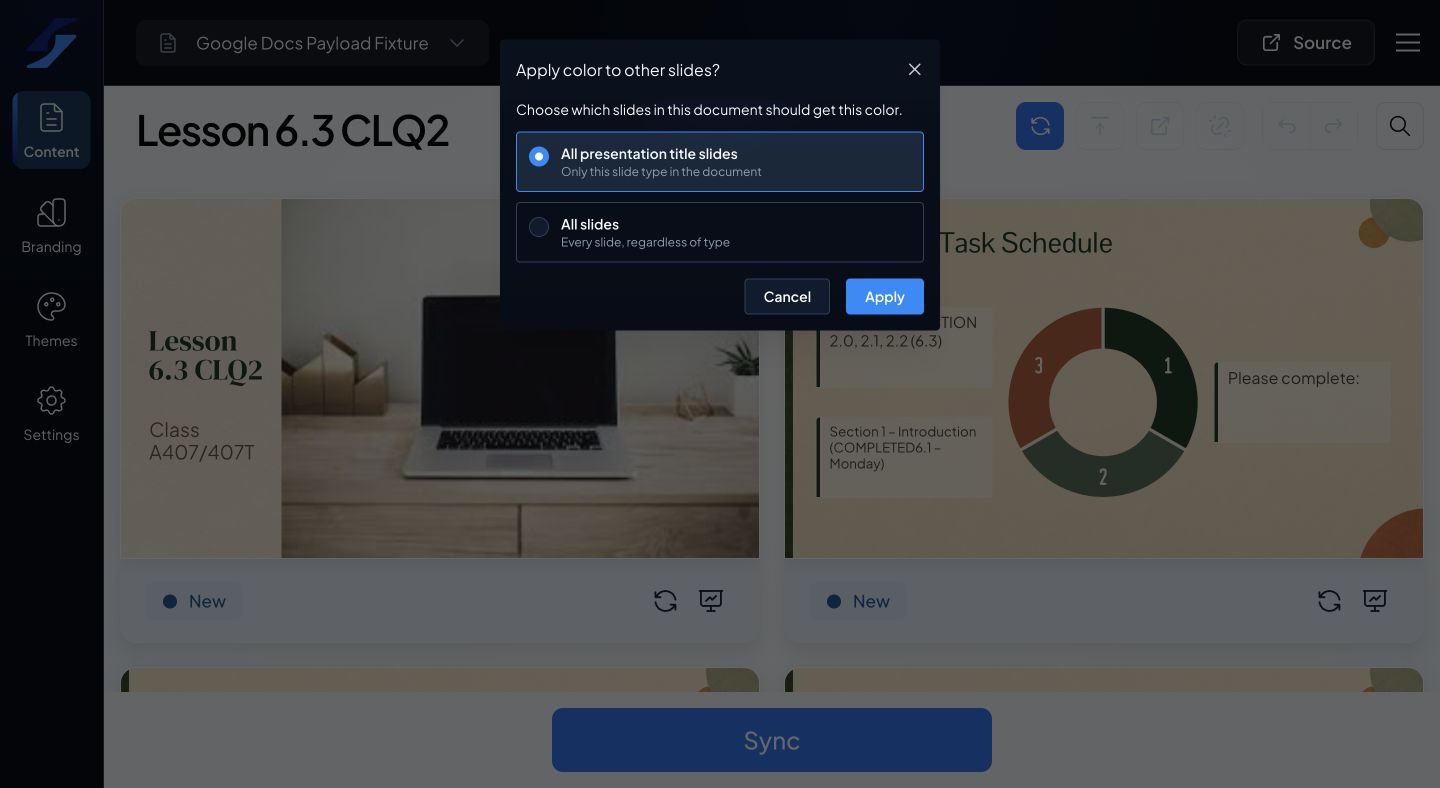
Styling a preview does not itself update an existing Google Slides deck. Sync when the preview is ready.
See Apply styling to one element, one slide, or multiple slides for scope and reset behavior.