

The editor is where you review a source document’s presentations and decide which updates to send to managed Google Slides decks. Previews show the output you are managing; content and appearance controls help you maintain it.
Use the main controls
- Content opens layout shortcuts, Google Slides import, and AI tools.
- Branding holds brand colors, logos, and background assets.
- Themes lets you select a preset or custom theme and open the theme builder.
- Settings includes content filters and speaker-note handling.
- Refresh reads changes from the source Google Doc.
The layout of panels can differ between the web app and the Google Docs add-on. On smaller surfaces, controls may open in a drawer.
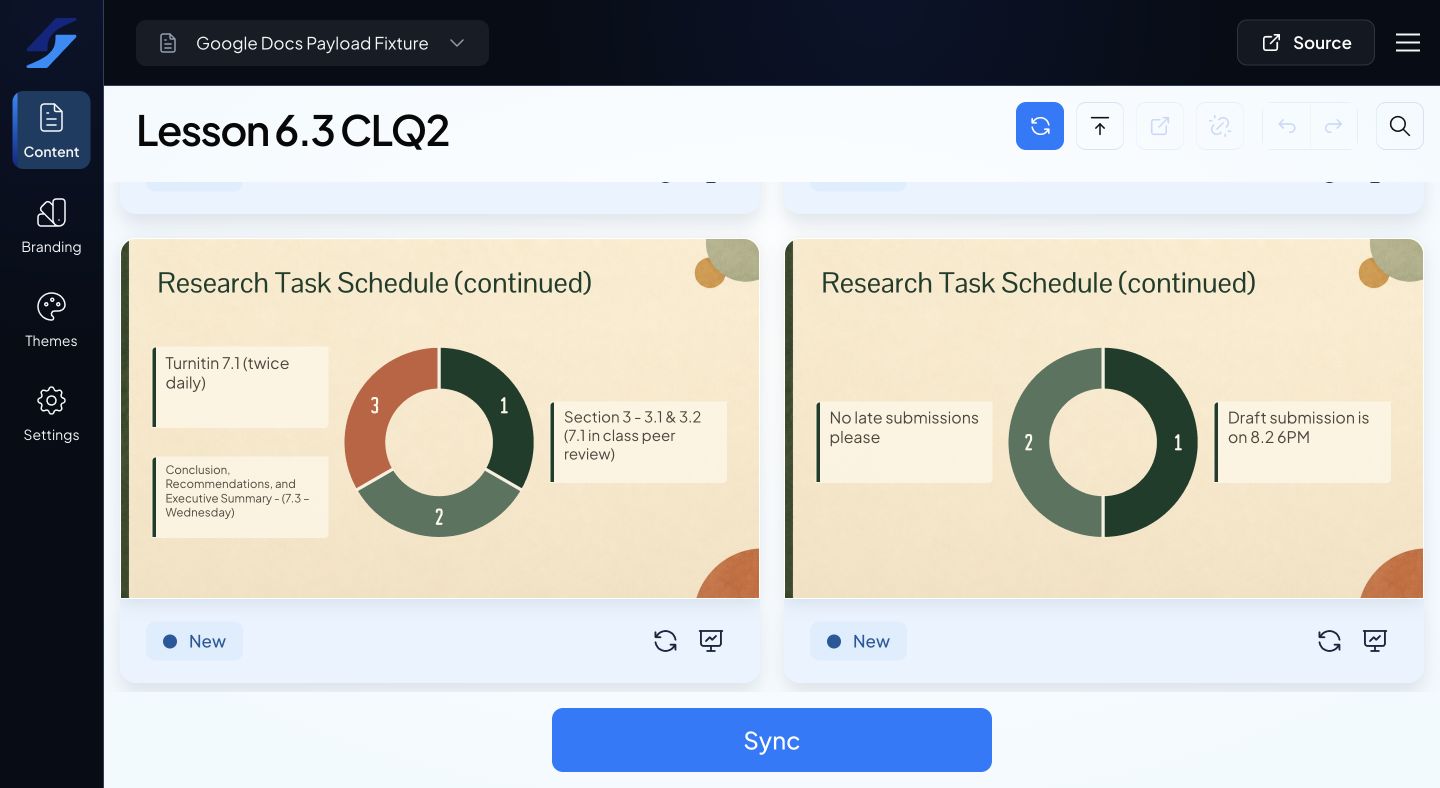
Work with the preview
Browse the presentation and select a text block, image, card, table, or slide background to open its contextual controls. The menu title identifies the item you are changing. Available options depend on the selected content.
If your Doc contains multiple presentations, use the presentation selection controls to choose the one you want to work with. A search can help locate content in larger documents.
Understand the output controls
Generate creates Google Slides output. Sync updates an existing managed deck. Present opens the browser presentation view. These actions have different effects: reviewing a preview or presenting it does not itself sync a managed Google Slides file.
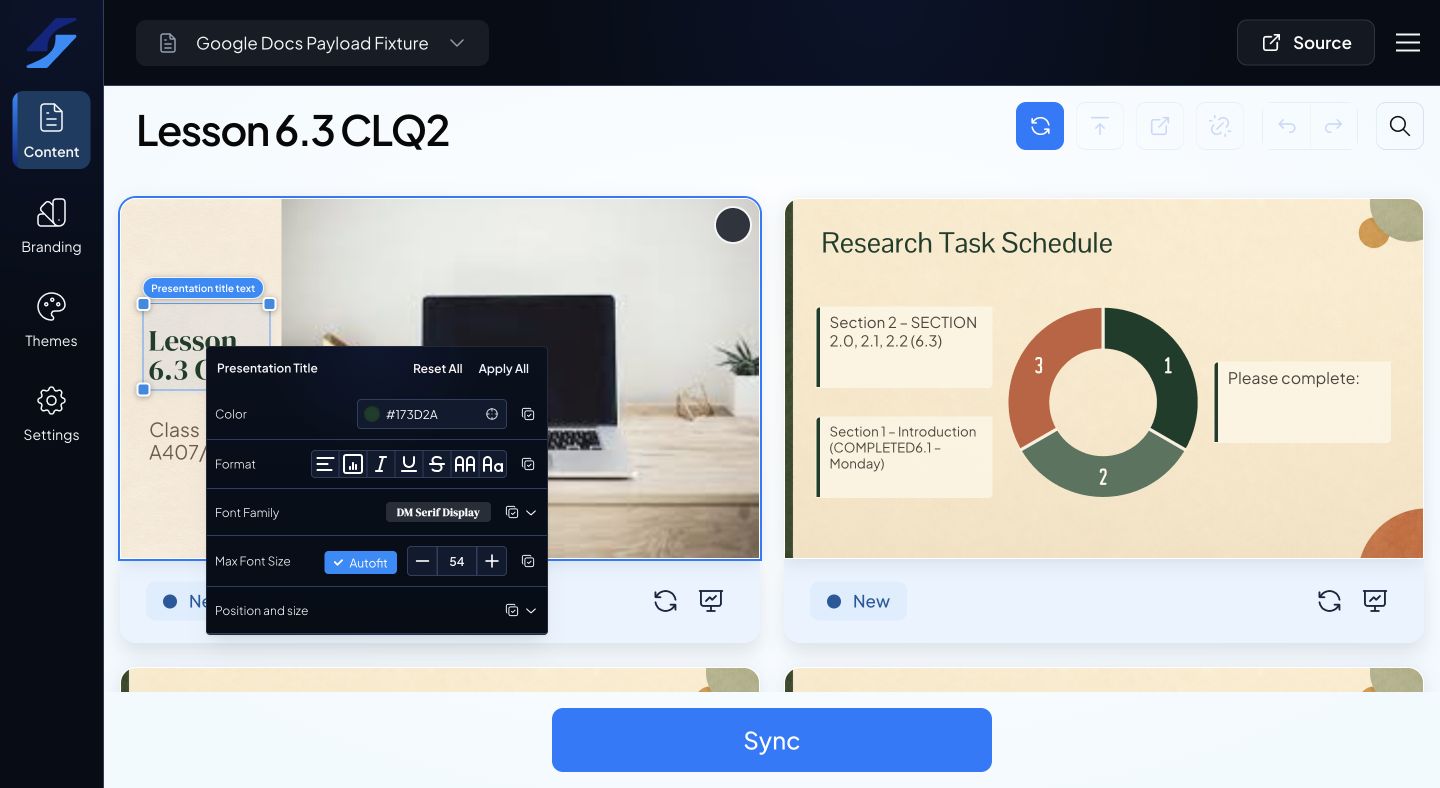
For a detailed editing workflow, see Customize slides with contextual menus.