

Use the preview to decide whether a problem comes from too much content, insufficient text space, or an unsuitable image fit. Fix one cause at a time.
Text is too small
Autofit can reduce text below the chosen maximum font size to fit its available space. Raising the maximum alone may not help.
Try these changes in order:
- Shorten the text in Google Docs and refresh.
- Split a dense slide into two slides.
- Reduce Cards per slide where the layout supports it.
- Adjust spacing or the balance between text and images.
- Review the font size in the text contextual controls.
Inspect the slide at presentation size before accepting the result.
Text overflows or looks crowded
Select the affected block and check line spacing, paragraph spacing, font, and available geometry controls. Excessive spacing can reduce usable text area. A different font can also change how many lines fit.
For cards, check the text space and image size. Avoid squeezing a long description into a small card simply to keep more cards on one slide.
An image cuts off important details
Select the image and choose a fit that shows the whole source, or adjust the automatic image size. A crop or mask can hide edges, faces, and labels. Try a different placement if the image and text need more room.
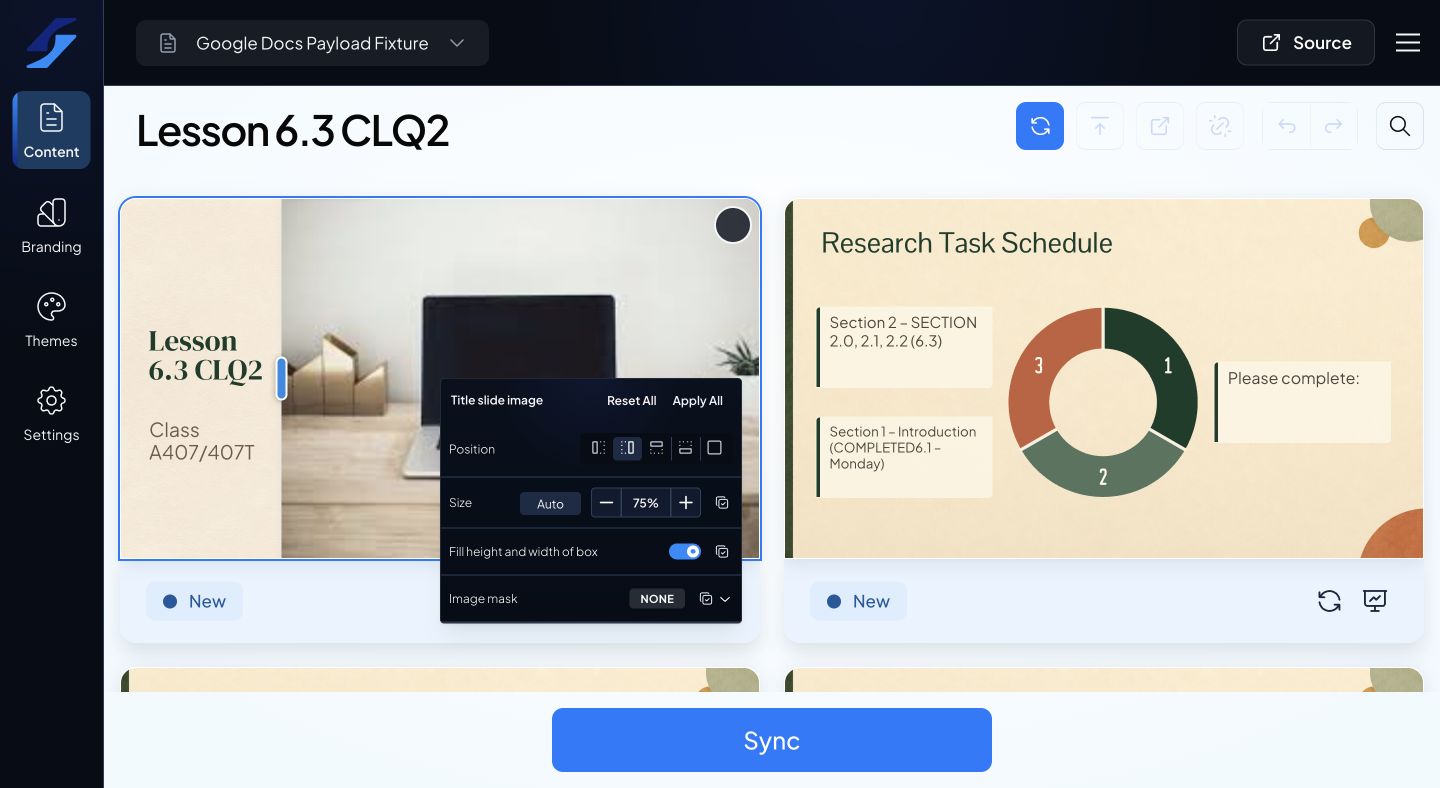
If a local style is unexpected, inspect contextual customizations before resetting. Read the reset scope so you do not remove desired styling elsewhere.