

Import supported content from an existing Google Slides deck into a Google Doc to establish editable source content. Review the imported structure before generating managed output; import is not an exact copy of every object or animation.
Choose the destination
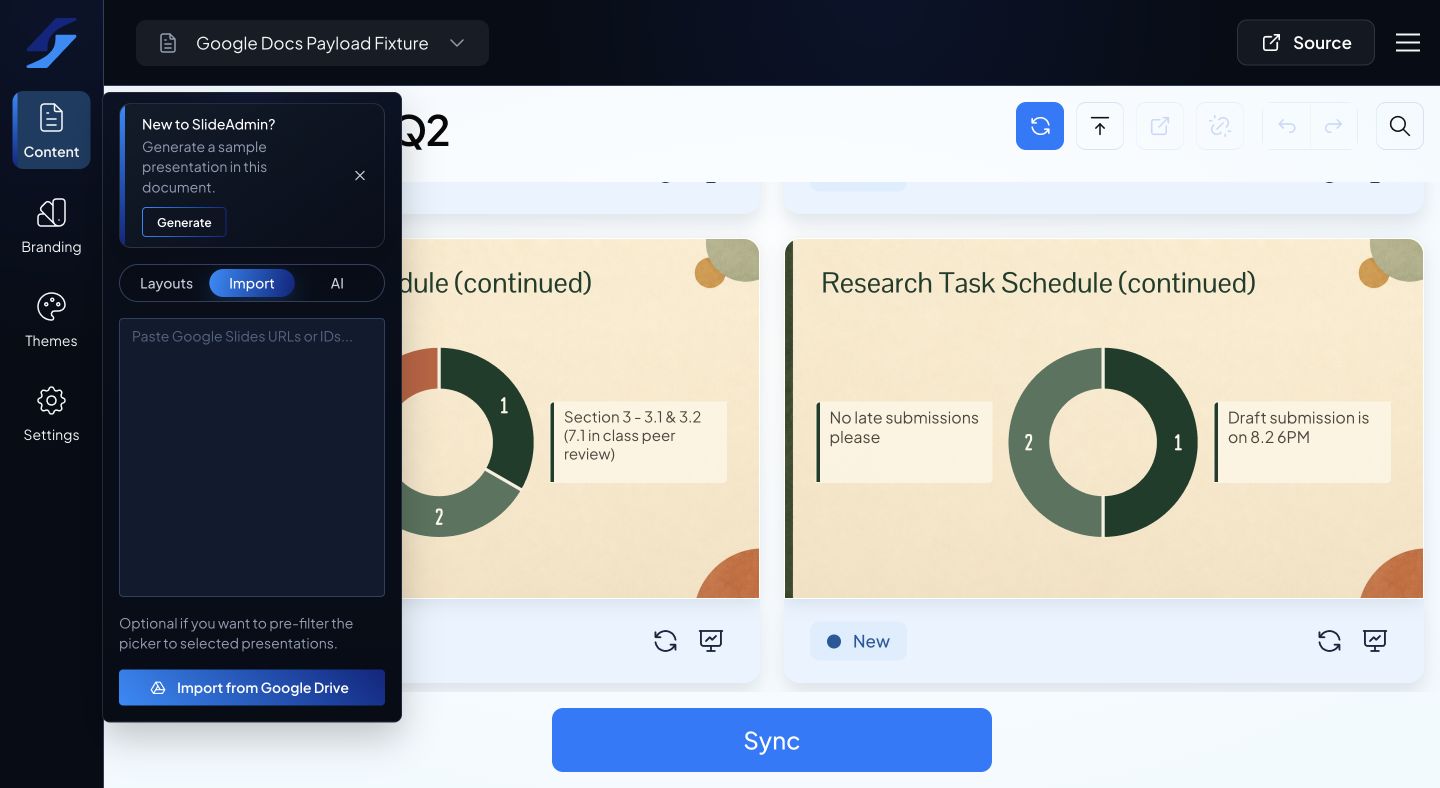
Open the destination document in SlideAdmin and choose Content → Import. To start a separate workflow from the document hub, use its Google Slides import option.
Make sure the Google account signed in to SlideAdmin can read the source decks and edit the destination Doc.
Select source decks
- Optionally enter Google Slides URLs or IDs in Pre-filter picker.
- Open the Google Drive picker.
- Select the presentations you want to import.
- Start the import and wait for the completion message.
The URL/ID field narrows the picker selection; it does not grant permission to files. Leave it empty to browse available presentations.
Review the imported content
Open the destination Doc and check heading styles, slide order, text, tables, images, and notes where present. Then refresh the previews and choose a SlideAdmin theme.
Objects and formatting that do not map to supported document content may need to be recreated or adjusted. Keep the original deck available for comparison.
Importing a deck does not establish a sync link back to that original file. Generate a managed Google Slides presentation from the resulting Doc when you want a managed output.
For that workflow, see Create a managed Google Slides presentation.