

Browser presentation mode lets you show the current SlideAdmin previews directly. Use it to present the version you have reviewed without generating another Google Slides deck. It does not update an existing managed deck.
Prepare your presentation
- Open the source document and refresh after any Google Docs edits.
- Select the presentation you want to show.
- Review slide order, text size, images, and video links.
- Close editing menus when you are ready.
Browser presentation mode shows the SlideAdmin version of the slides. It does not send an update to an existing Google Slides deck.
Start and navigate
Use Present to open the presentation view. Use Next slide and Previous slide in the presentation controls to move through the deck. Enter full screen with the full-screen control where available, then use the same control to leave it.

Use tools while presenting
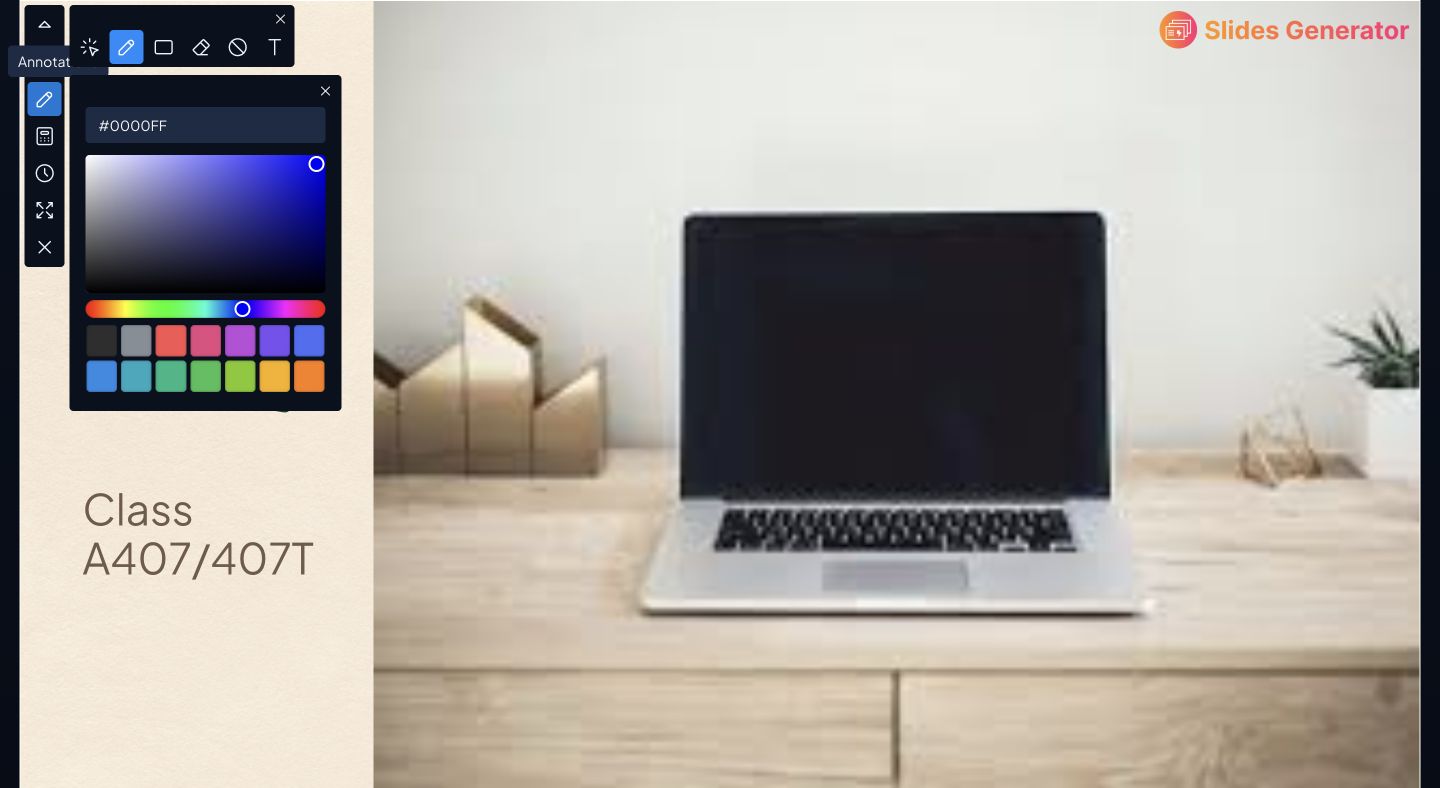
Open annotations when you want to mark up a slide. The tools also include a timer and calculator. Position the floating controls so they do not obscure important content.
Test videos and any other external content on the device and network you will use for the presentation.
Return to the editor
Close the presentation view using its close control. Update the source Doc or appearance as needed, then refresh and review before starting again.
Browser presenting does not grant audience access to the source Doc or create a published share link. For Google Slides output that others can open, generate a deck and manage that file’s sharing in Google Drive.