

Presentation tools help you explain a slide while showing it in your browser. They appear in the presentation view alongside navigation and full-screen controls.
Annotate a slide
- Start browser presentation mode.
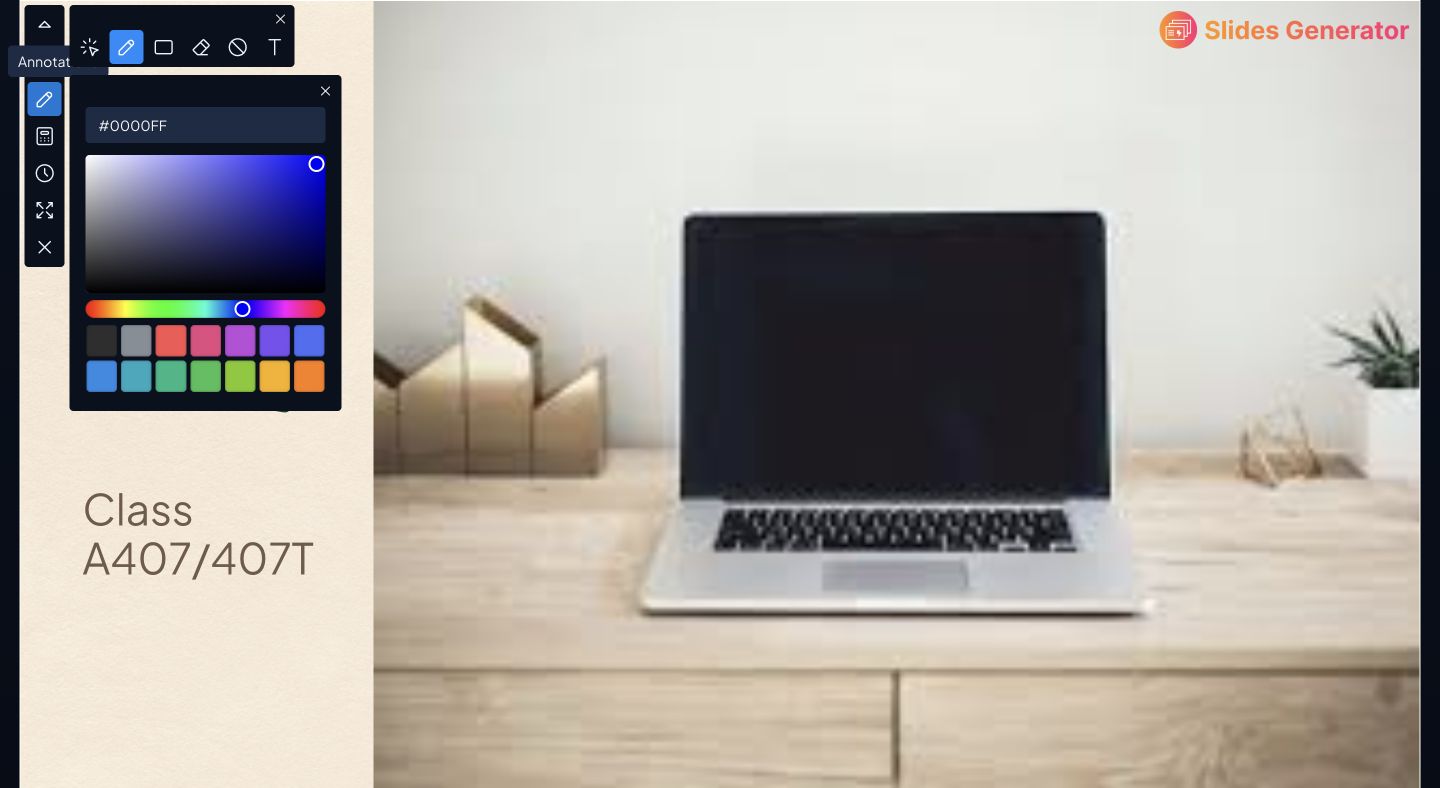
- Open Annotations from the floating controls.
- Choose a tool such as pen, text, line, arrow, rectangle, triangle, or circle.
- Choose the available color and draw or place the annotation on the slide.
- Use the selection tool to work with annotations, or the eraser to remove marks.
Use Clear annotations on current slide when you want to remove that slide’s annotations. This is scoped to the current slide, so check which slide is visible first.
Use the timer
Open the timer from the presentation controls. Set or adjust the time using its controls, then start it. Pause or reset as needed. Keep it where you can see it without covering the slide’s main message.
Use the calculator
Open the calculator when you need to work through numbers during a session. Close it when finished to return focus to the slide.
The floating widget controls can be moved to a convenient position.

Keep source content separate
Annotations are separate from the wording and structure in your Google Doc. Do not use a live annotation as a substitute for a permanent source-content edit. If a correction needs to appear in future output, change the Doc or SlideAdmin settings and review the previews.
See Present slides in your browser for starting and leaving presentation mode.